Tuesday, 21 March 2017

[ROM] Download Android O for Pixel XL [Marlin] Dev Preview

Download and install Android Dev Preview for Pixel XL.Android O but we’re really hoping it’ll become Android Oreo once it’s released).Introduces a number of new features and APIs to use in your apps. Here's are just a few new things for you to start trying in this first Developer Preview.

download- android-oreo
For the second year in a row, Google is making a developer preview for the next version of Android available in March, well ahead of its presumed consumer release in the fall. This one is codenamed “O,” and your guess is as good as mine as to what dessert the final version will be named after. It isn’t yet available for regular users to try out. Although developers can begin testing it right away, it’s best for most people to let things stabilize a bit more before they try it out. Developers can download it today.

Downloads


How to install Android O Dev Preview on Pixel XL:

  1. Download the Android O image for Pixel XL below, then unzip it to a safe directory.
  2. Connect your device to your computer over USB.
  3. Start the device in fastboot mode with one of the following methods:
    • Using the adb tool: With the device powered on, execute:
      adb reboot bootloader
    • Using a key combo: Turn the device off, then turn it on and immediately hold down the relevant key combination for your device. For example, to put a Nexus 5 ("hammerhead") into fastboot mode, press and hold Volume Up + Volume Down + Power as the device begins booting up.
  4. If necessary, unlock the device's bootloader using one of the following methods:
    • If you are updating a Pixel XL or Pixel XL device using the hammerhead or angler builds, update your fastboot tool to the latest available version (>=23.0.1), and then run this command:
      fastboot flashing unlock
    • If you are updating an older device, run this command:
      fastboot oem unlock

    The target device will show you a confirmation screen. (This erases all data on the target device.)
  5. Open a terminal and navigate to the unzipped Android O image for Pixel XL.
  6. Execute the flash-all script. This script installs the necessary bootloader, baseband firmware(s), and operating system.
Once the script finishes, your device reboots and Android O image for Pixel XL will installed. You should now lock the bootloader for security:

How to Lock bootloader 

  1. Start the device in fastboot mode again, as described above.
  2. Execute: 
    fastboot flashing lock
    or, for older devices, run
    fastboot oem lock
Locking bootloader will wipe the data on some devices. After locking the bootloader, if you want to flash the device again, you must run fastboot oem unlock again, which will wipe the data.

Labels: , , ,

[Download] How to Install Android O Pixel [sailfish] Dev Preview

Download and install Android Dev Preview for Pixel.Android O but we’re really hoping it’ll become Android Oreo once it’s released).Introduces a number of new features and APIs to use in your apps. Here's are just a few new things for you to start trying in this first Developer Preview.
download- android-oreo
For the second year in a row, Google is making a developer preview for the next version of Android available in March, well ahead of its presumed consumer release in the fall. This one is codenamed “O,” and your guess is as good as mine as to what dessert the final version will be named after. It isn’t yet available for regular users to try out. Although developers can begin testing it right away, it’s best for most people to let things stabilize a bit more before they try it out. Developers can download it today.

Downloads


How to install Android O Dev Preview on Pixel:

  1. Download the Android O image for Pixel below, then unzip it to a safe directory.
  2. Connect your device to your computer over USB.
  3. Start the device in fastboot mode with one of the following methods:
    • Using the adb tool: With the device powered on, execute:
      adb reboot bootloader
    • Using a key combo: Turn the device off, then turn it on and immediately hold down the relevant key combination for your device. For example, to put a Nexus 5 ("hammerhead") into fastboot mode, press and hold Volume Up + Volume Down + Power as the device begins booting up.
  4. If necessary, unlock the device's bootloader using one of the following methods:
    • If you are updating a Pixel or Pixel device using the hammerhead or angler builds, update your fastboot tool to the latest available version (>=23.0.1), and then run this command:
      fastboot flashing unlock
    • If you are updating an older device, run this command:
      fastboot oem unlock

    The target device will show you a confirmation screen. (This erases all data on the target device.)
  5. Open a terminal and navigate to the unzipped Android O image for Pixel.
  6. Execute the flash-all script. This script installs the necessary bootloader, baseband firmware(s), and operating system.
Once the script finishes, your device reboots and Android O image for Pixel will installed. You should now lock the bootloader for security:

How to Lock bootloader 

  1. Start the device in fastboot mode again, as described above.
  2. Execute: 
    fastboot flashing lock
    or, for older devices, run
    fastboot oem lock
Locking bootloader will wipe the data on some devices. After locking the bootloader, if you want to flash the device again, you must run fastboot oem unlock again, which will wipe the data.

Labels: , , ,

Download Android O for Nexus C [ryu] Dev Preview

Download and install Android Dev Preview for Pixel C.Android O but we’re really hoping it’ll become Android Oreo once it’s released).Introduces a number of new features and APIs to use in your apps. Here's are just a few new things for you to start trying in this first Developer Preview.
download- android-oreo
For the second year in a row, Google is making a developer preview for the next version of Android available in March, well ahead of its presumed consumer release in the fall. This one is codenamed “O,” and your guess is as good as mine as to what dessert the final version will be named after. It isn’t yet available for regular users to try out. Although developers can begin testing it right away, it’s best for most people to let things stabilize a bit more before they try it out. Developers can download it today.

Downloads


How to install Android O Dev Preview on Pixel C:

  1. Download the Android O image for Pixel C below, then unzip it to a safe directory.
  2. Connect your device to your computer over USB.
  3. Start the device in fastboot mode with one of the following methods:
    • Using the adb tool: With the device powered on, execute:
      adb reboot bootloader
    • Using a key combo: Turn the device off, then turn it on and immediately hold down the relevant key combination for your device. For example, to put a Nexus 5 ("hammerhead") into fastboot mode, press and hold Volume Up + Volume Down + Power as the device begins booting up.
  4. If necessary, unlock the device's bootloader using one of the following methods:
    • If you are updating a Pixel C or Pixel C device using the hammerhead or angler builds, update your fastboot tool to the latest available version (>=23.0.1), and then run this command:
      fastboot flashing unlock
    • If you are updating an older device, run this command:
      fastboot oem unlock

    The target device will show you a confirmation screen. (This erases all data on the target device.)
  5. Open a terminal and navigate to the unzipped Android O image for Pixel C.
  6. Execute the flash-all script. This script installs the necessary bootloader, baseband firmware(s), and operating system.
Once the script finishes, your device reboots and Android O image for Pixel C will installed. You should now lock the bootloader for security:

How to Lock bootloader 

  1. Start the device in fastboot mode again, as described above.
  2. Execute: 
    fastboot flashing lock
    or, for older devices, run
    fastboot oem lock
Locking bootloader will wipe the data on some devices. After locking the bootloader, if you want to flash the device again, you must run fastboot oem unlock again, which will wipe the data.

Labels: , , , ,

Download and install Android O Nexus 6P [angler] Dev Preview

Download and install Android O Dev Preview for Nexus 6P.Android O but we’re really hoping it’ll become Android Oreo once it’s released).Introduces a number of new features and APIs to use in your apps. Here's are just a few new things for you to start trying in this first Developer Preview.
download- android-oreo
For the second year in a row, Google is making a developer preview for the next version of Android available in March, well ahead of its presumed consumer release in the fall. This one is codenamed “O,” and your guess is as good as mine as to what dessert the final version will be named after. It isn’t yet available for regular users to try out. Although developers can begin testing it right away, it’s best for most people to let things stabilize a bit more before they try it out. Developers can download it today.

Downloads


How to install Android O Dev Preview on Nexus 6P:

  1. Download the Android O image for Nexus 6P below, then unzip it to a safe directory.
  2. Connect your device to your computer over USB.
  3. Start the device in fastboot mode with one of the following methods:
    • Using the adb tool: With the device powered on, execute:
      adb reboot bootloader
    • Using a key combo: Turn the device off, then turn it on and immediately hold down the relevant key combination for your device. For example, to put a Nexus 5 ("hammerhead") into fastboot mode, press and hold Volume Up + Volume Down + Power as the device begins booting up.
  4. If necessary, unlock the device's bootloader using one of the following methods:
    • If you are updating a Nexus 6P or Nexus 6P device using the hammerhead or angler builds, update your fastboot tool to the latest available version (>=23.0.1), and then run this command:
      fastboot flashing unlock
    • If you are updating an older device, run this command:
      fastboot oem unlock

    The target device will show you a confirmation screen. (This erases all data on the target device.)
  5. Open a terminal and navigate to the unzipped Android O image for Nexus 6P.
  6. Execute the flash-all script. This script installs the necessary bootloader, baseband firmware(s), and operating system.
Once the script finishes, your device reboots and Android O image for Nexus 6P will installed. You should now lock the bootloader for security:

How to Lock bootloader 

  1. Start the device in fastboot mode again, as described above.
  2. Execute: 
    fastboot flashing lock
    or, for older devices, run
    fastboot oem lock
Locking bootloader will wipe the data on some devices. After locking the bootloader, if you want to flash the device again, you must run fastboot oem unlock again, which will wipe the data.

Labels: , ,

How to install Android O on Nexus 5X [bullhead] Dev Preview

Download and install Android Dev Preview for Nexus 5X.Android O but we’re really hoping it’ll become Android Oreo once it’s released).Introduces a number of new features and APIs to use in your apps. Here's are just a few new things for you to start trying in this first Developer Preview.
download- android-oreo
For the second year in a row, Google is making a developer preview for the next version of Android available in March, well ahead of its presumed consumer release in the fall. This one is codenamed “O,” and your guess is as good as mine as to what dessert the final version will be named after. It isn’t yet available for regular users to try out. Although developers can begin testing it right away, it’s best for most people to let things stabilize a bit more before they try it out. Developers can download it today.

Downloads


How to install Android O Dev Preview on Nexus 5X:

  1. Download the Android O image for Nexus 5X below, then unzip it to a safe directory.
  2. Connect your device to your computer over USB.
  3. Start the device in fastboot mode with one of the following methods:
    • Using the adb tool: With the device powered on, execute:
      adb reboot bootloader
    • Using a key combo: Turn the device off, then turn it on and immediately hold down the relevant key combination for your device. For example, to put a Nexus 5 ("hammerhead") into fastboot mode, press and hold Volume Up + Volume Down + Power as the device begins booting up.
  4. If necessary, unlock the device's bootloader using one of the following methods:
    • If you are updating a Nexus 5X or Nexus 6P device using the hammerhead or angler builds, update your fastboot tool to the latest available version (>=23.0.1), and then run this command:
      fastboot flashing unlock
    • If you are updating an older device, run this command:
      fastboot oem unlock

    The target device will show you a confirmation screen. (This erases all data on the target device.)
  5. Open a terminal and navigate to the unzipped Android O image for Nexus 5X.
  6. Execute the flash-all script. This script installs the necessary bootloader, baseband firmware(s), and operating system.
Once the script finishes, your device reboots and Android O image for Nexus 5X will installed. You should now lock the bootloader for security:

How to Lock bootloader 

  1. Start the device in fastboot mode again, as described above.
  2. Execute: 
    fastboot flashing lock
    or, for older devices, run
    fastboot oem lock
Locking bootloader will wipe the data on some devices. After locking the bootloader, if you want to flash the device again, you must run fastboot oem unlock again, which will wipe the data.

Labels: , , , ,

Android O is Here : Download Android O Dev Preview for for Nexus...

The O Developer Preview includes an updated SDK with system images for testing on the official Android Emulator and on Nexus 5X, Nexus 6P, Nexus Player, Pixel, Pixel XL and Pixel C devices. If you're building for wearables, there's also an emulator for testing Android Wear 2.0 on Android O may be Oreo.O-MG, the Developer Preview of Android O is here.
Here is the latest Android version dev preview i.e Android O.


So, today, I'm excited to share a first developer preview of the next version of the OS: Android O. The usual caveats apply: it's early days, there are more features coming, and there's still plenty of stabilization and performance work ahead of us. But it's booting :).

Over the course of the next several months, we'll be releasing updated developer previews, and we'll be doing a deep dive on all things Android at Google I/O in May. In the meantime, we'd love your feedback on trying out new features, and of course testing your apps on the new OS.
What's new in O?

Android O introduces a number of new features and APIs to use in your apps. Here's are just a few new things for you to start trying in this first Developer Preview:

Background limits: Building on the work we began in Nougat, Android O puts a big priority on improving a user's battery life and the device's interactive performance. To make this possible, we've put additional automatic limits on what apps can do in the background, in three main areas: implicit broadcasts, background services, and location updates. These changes will make it easier to create apps that have minimal impact on a user's device and battery. Background limits represent a significant change in Android, so we want every developer to get familiar with them. Check out the documentation on background execution limits and background location limits for details.


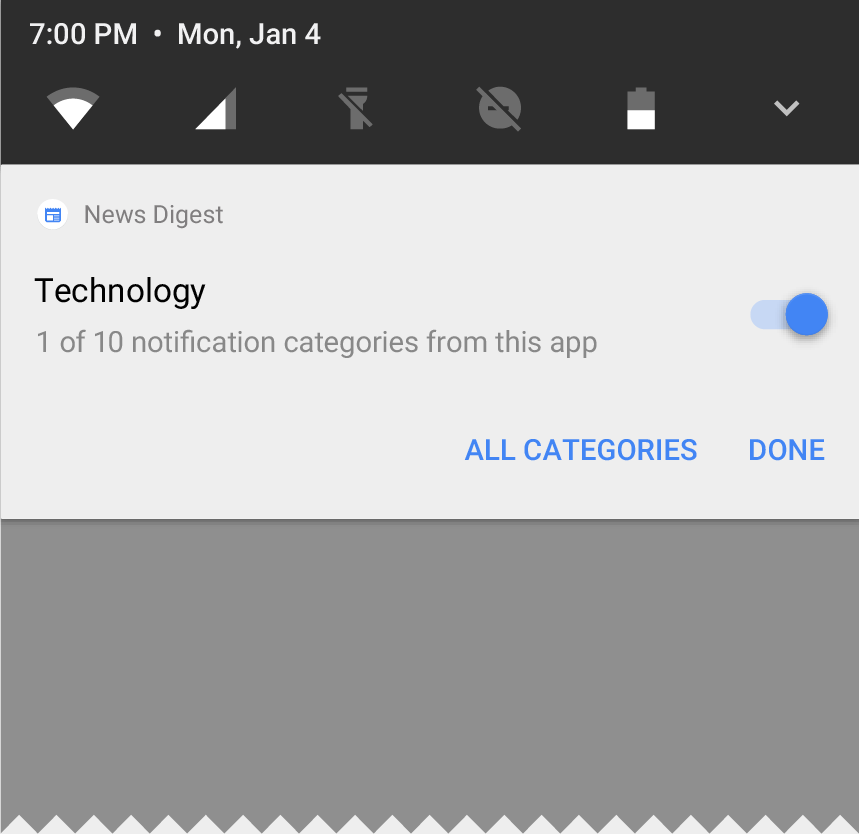
Notification channels: Android O also introduces notification channels, which are new app-defined categories for notification content. Channels let developers give users fine-grained control over different kinds of notifications — users can block or change the behavior of each channel individually, rather than managing all of the app's notifications together.


Notification channels let users control your app's notification categories

Android O also adds new visuals and grouping to notifications that make it easier for users to see what's going on when they have an incoming message or are glancing at the notification shade.


Autofill APIs: Android users already depend on a range of password managers to autofill login details and repetitive information, which makes setting up new apps or placing transactions easier. Now we are making this work more easily across the ecosystem by adding platform support for autofill. Users can select an autofill app, similar to the way they select a keyboard app. The autofill app stores and secures user data, such as addresses, user names, and even passwords. For apps that want to handle autofill, we're adding new APIs to implement an Autofill service.

PIP for handsets and new windowing features:

Picture in Picture (PIP) display is now available on phones and tablets, so users can continue watching a video while they're answering a chat or hailing a car. Apps can put themselves in PiP mode from the resumed or a pausing state where the system supports it - and you can specify the aspect ratio and a set of custom interactions (such as play/pause). Other new windowing features include a new app overlay window for apps to use instead of system alert window, and multi-display support for launching an activity on a remote display.

Font resources in XML: Fonts are now a fully supported resource type in Android O. Apps can now use fonts in XML layouts as well as define font families in XML — declaring the font style and weight along with the font files.

Adaptive icons: To help you integrate better with the device UI, you can now create adaptive icons that the system displays in different shapes, based on a mask selected by the device. The system also animates interactions with the icons, and them in the launcher, shortcuts, Settings, sharing dialogs, and in the overview screen.


Adaptive icons display in a variety of shapes across different device models.


Wide-gamut color for apps: Android developers of imaging apps can now take advantage of new devices that have a wide-gamut color capable display. To display wide gamut images, apps will need to enable a flag in their manifest (per activity) and load bitmaps with an embedded wide color profile (AdobeRGB, Pro Photo RGB, DCI-P3, etc.).

Connectivity: For the ultimate in audio fidelity, Android O now also supports high-quality Bluetooth audio codecs such as LDAC codec. We're also adding new Wi-Fi features as well, like Wi-Fi Aware, previously known as Neighbor Awareness Networking (NAN). On devices with the appropriate hardware, apps and nearby devices can discover and communicate over Wi-Fi without an Internet access point. We're working with our hardware partners to bring Wi-Fi Aware technology to devices as soon as possible.

The Telecom framework is extending ConnectionService APIs to enable third party calling apps integrate with System UI and operate seamlessly with other audio apps. For instance, apps can have their calls displayed and controlled in different kinds of UIs such as car head units.

Keyboard navigation: With the advent of Google Play apps on Chrome OS and other large form factors, we're seeing a resurgence of keyboard navigation use within these apps. In Android O we focused on building a more reliable, predictable model for "arrow" and "tab" navigation that aids both developers and end users.

AAudio API for Pro Audio: AAudio is a new native API that's designed specifically for apps that require high-performance, low-latency audio. Apps using AAudio read and write data via streams. In the Developer Preview we're releasing an early version of this new API to get your feedback.

WebView enhancements: In Android Nougat we introduced an optional multiprocess mode for WebView that moved the handling of web content into an isolated process. In Android O, we're enabling multiprocess mode by default and adding an API to let your app handle errors and crashes, for enhanced security and improved app stability. As a further security measure, you can now opt in your app's WebView objects to verify URLs through Google Safe Browsing.

Java 8 Language APIs and runtime optimizations: Android now supports several new Java Language APIs, including the new java.time API. In addition, the Android Runtime is faster than ever before, with improvements of up to 2x on some application benchmarks.

Partner platform contributions: Hardware manufacturers and silicon partners have accelerated fixes and enhancements to the Android platform in the O release. For example, Sony has contributed more than 30 feature enhancements, including the LDAC codec, and 250 bug fixes to Android O.

Labels: , , ,